
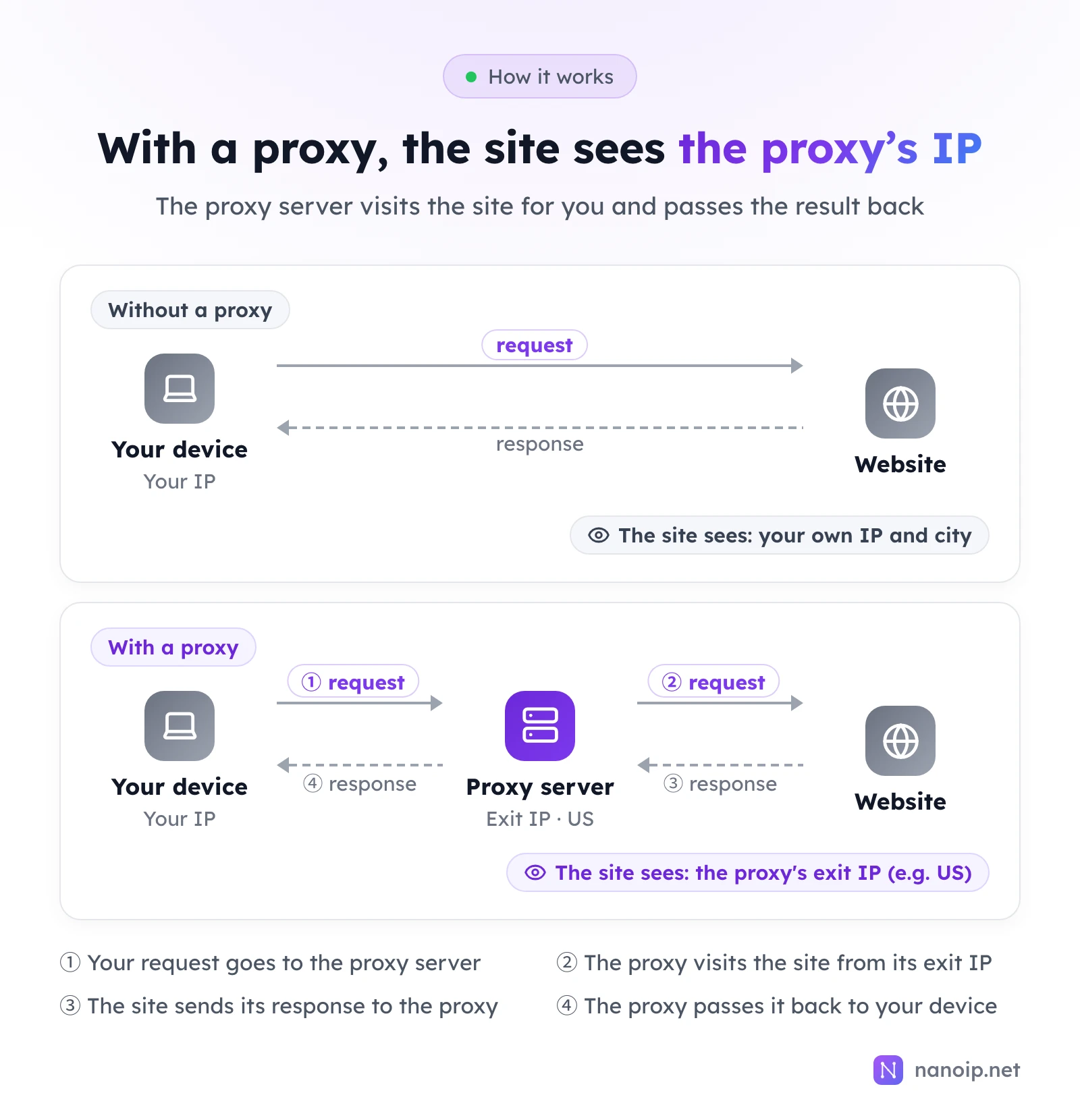
A proxy server is a server that sits between your device and the websites you visit. Your app sends each request to the proxy, the proxy fetches the page from its own IP address, and then passes the result back to you. The website sees the proxy's IP and location instead of yours. Businesses use proxies to run several accounts from separate IPs, see websites as they appear in other countries, collect public data and check ads.
How a proxy server works
A request through a proxy takes four steps:
- Your browser or tool sends the request to the proxy server instead of the website.
- The proxy server visits the website from its own exit IP.
- The website sends its response to the proxy.
- The proxy passes the response back to your device.
Two details are easy to miss:
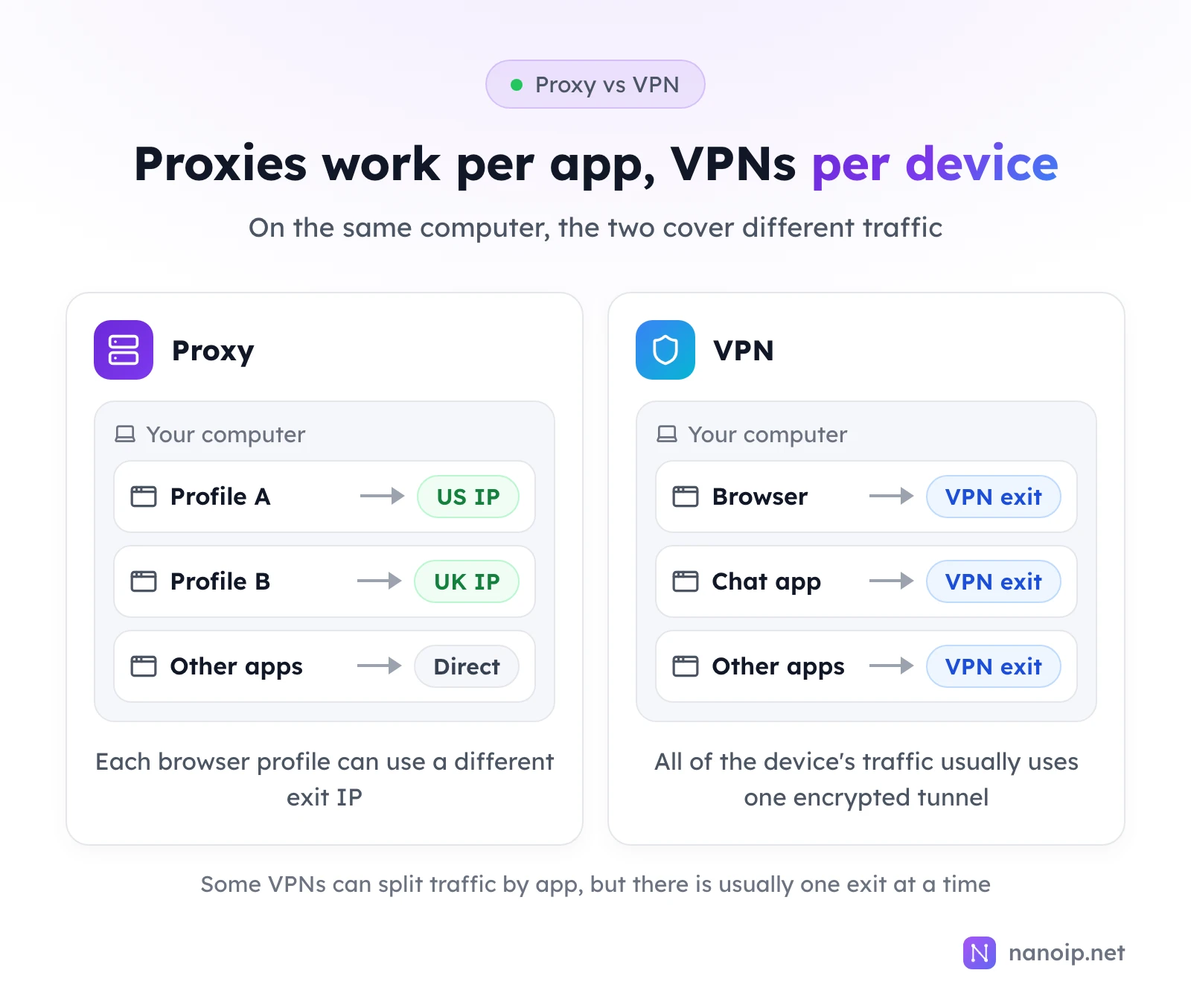
- Only apps you configure use the proxy. Setting a proxy in one browser profile changes nothing for the other apps on your computer, which keep using your own connection.
- On HTTPS sites, the proxy cannot see the page. For an encrypted site, the proxy only builds a tunnel to it. It knows which domain you connect to and how much data passes, but not what is inside the tunnel.
Which protocols a proxy speaks, HTTP, HTTPS or SOCKS5, and whether it carries UDP, are covered in proxy basics and in SOCKS5 vs HTTP proxies.
Proxy server vs proxy IP
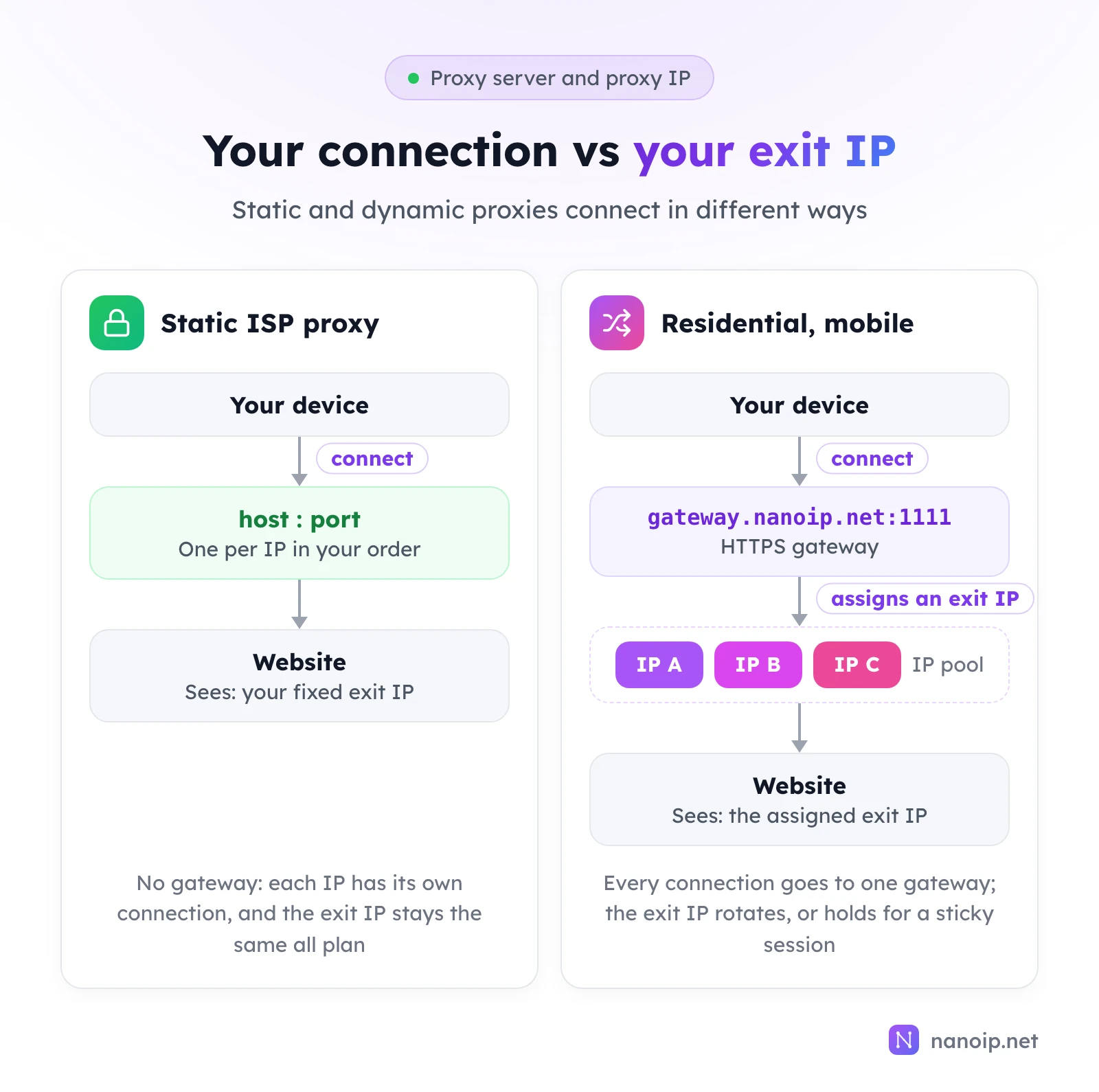
The two terms are often used as one, but they are different things. The proxy server is the address you connect to: the host and port you enter in your tool. The proxy IP, or exit IP, is the address the website sees. Static and dynamic proxies differ exactly here:
Static ISP proxies: one set of details per IP
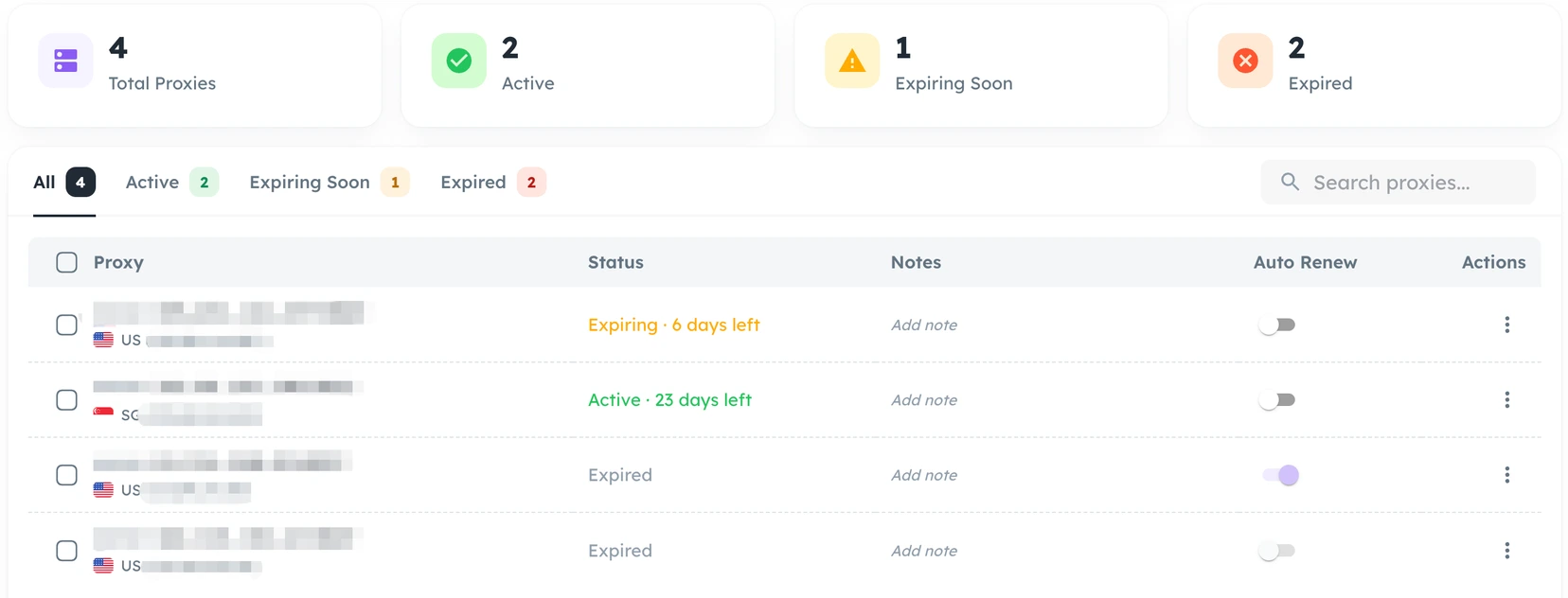
Static ISP proxies do not use a gateway. Each IP in your order has its own host, port, username and password, supports HTTP(S) and SOCKS5, and keeps the same exit IP for the whole plan. In the NanoIP dashboard's ISP Proxies list, each row is one fixed IP with its connection details, country, status, days left and an auto-renew switch. See ISP proxies.
Residential and mobile proxies: one gateway for every connection
Every connection goes over HTTPS to the same gateway, https://gateway.nanoip.net:1111. The gateway picks an exit IP from the pool according to the country and session type you chose, so the address you enter never changes while the IP the website sees can rotate. See residential proxies.
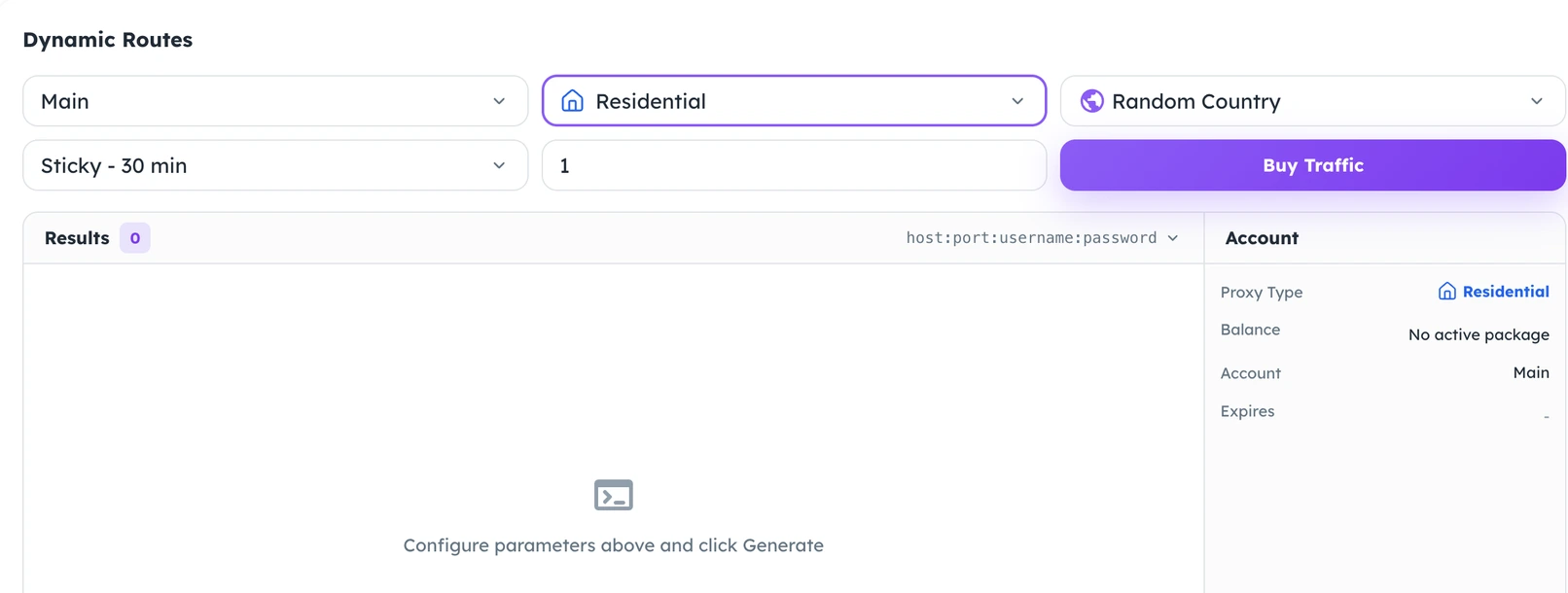
You generate these connection details on the dashboard's Dynamic Routes page: choose the proxy account, the proxy type, the country and the session type (for example Sticky - 30 min), set the quantity and click Generate. The details appear under Results in formats such as host:port:username:password, ready to copy or download. The guide to rotating vs sticky sessions explains the session types.
Forward, reverse and transparent proxies
| Type | Works for | Set up by | Examples |
|---|---|---|---|
| Forward proxy | The user | The user, in a browser or tool | Proxies from proxy providers, company web proxies |
| Reverse proxy | The website | The site operator, in front of its servers | Load balancers, CDN edge servers |
| Transparent proxy | The network owner | An administrator, on the network gateway, with nothing to configure | Content filtering and caching on company or school networks |
The proxy servers that providers sell, and the ones this article is about, are forward proxies.
Proxy server vs VPN
| Proxy server | VPN | |
|---|---|---|
| Scope | The apps or browser profiles you configure | Usually the whole device |
| Exit IP | A different proxy per browser profile if you want | Usually one exit at a time |
| Encryption | HTTPS sites are encrypted anyway; NanoIP's residential and mobile gateway also encrypts the connection between you and the gateway | All traffic between the device and the VPN server goes through an encrypted tunnel |
| Typical use | Account environments, viewing other regions, data collection | Reaching a company network, protecting traffic on public Wi-Fi |
A simple rule: to give each account or browser profile its own IP, use proxies; to protect all of a device's traffic, use a VPN.
What proxy servers are used for
| Use | Why a proxy | Usual type |
|---|---|---|
| Account and store management | Each account keeps its own fixed network environment over time | Static ISP |
| Ad verification | See whether ads show and link correctly in each target region | Residential or mobile |
| SEO rank tracking | See the search results that users in a region get | Residential |
| Price monitoring and market research | Check prices, stock and promotions by region | Residential, rotating |
| Public data collection | Spread many requests across IPs and locations | Residential, rotating |
| Website and app testing by region | Check pages, languages and features in each country | Residential or mobile |
To choose between the types, see mobile vs residential proxies and the guide to choosing ISP proxies.
From getting a proxy to checking it works, with NanoIP
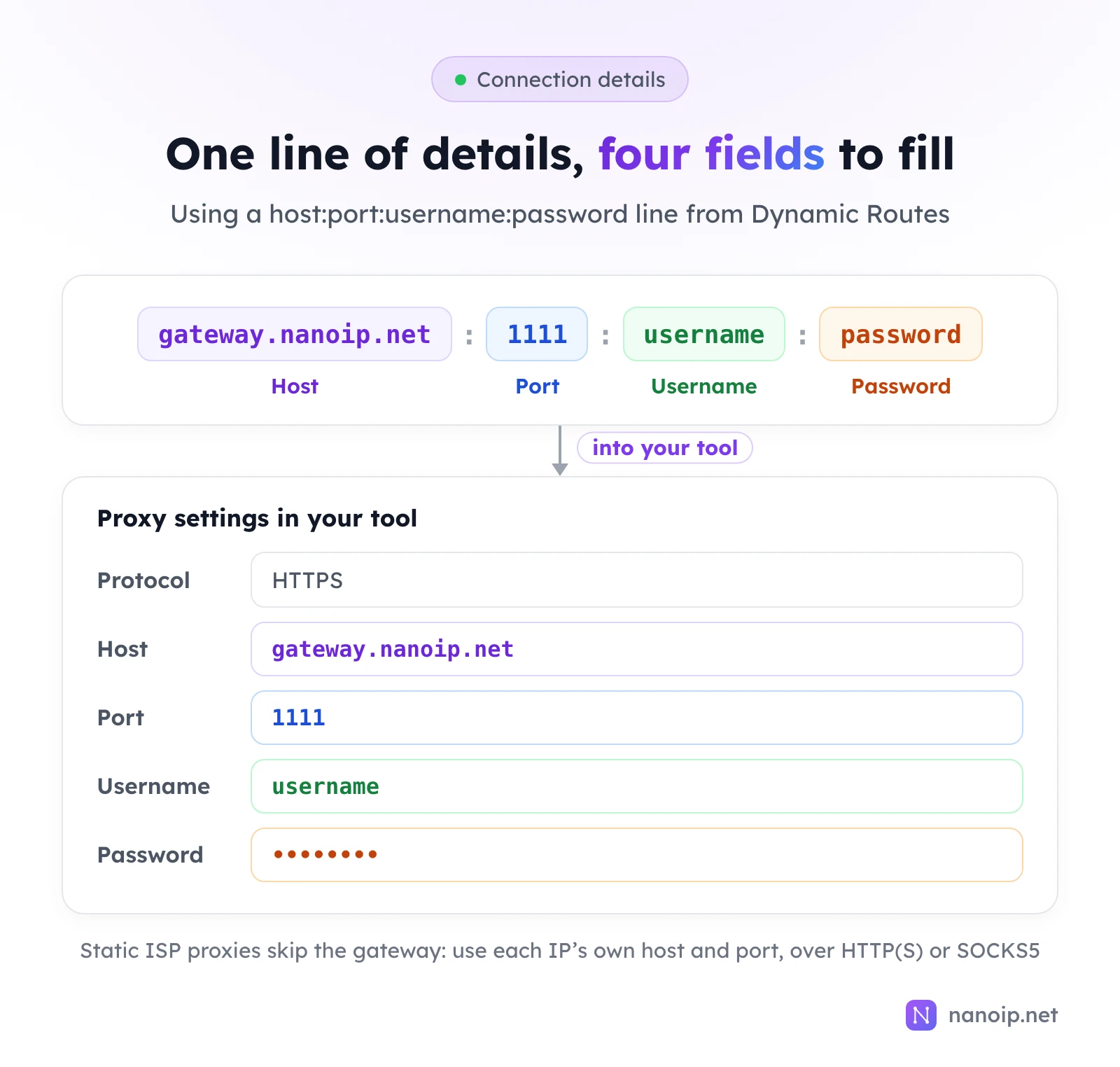
The connection details from the dashboard are one line of text. Split it at the colons and you have the four fields your tool's proxy settings ask for:
- Get the proxy details. Sign in to the proxy platform. Static ISP proxies are in the ISP Proxies list; residential and mobile connections are generated in Dynamic Routes, as shown above.
- Enter them in your tool. In the proxy settings of your browser, fingerprint browser or script, choose the protocol (HTTPS for residential and mobile; HTTP(S) or SOCKS5 for ISP), then enter the host, port, username and password.
- Check it works. In the configured browser or tool, open an IP lookup site and check that the IP and country match what you chose, then open the website you work with.
The getting started guide shows a command-line test and the most common setup mistakes.
Three common misconceptions
"A proxy makes me anonymous"
A proxy changes only where your traffic comes from. Websites can still recognize the same user by their login, cookies and browser, and the proxy provider can see which sites you connect to. A proxy answers "where is this request from", not "who is this".
"Once I set a proxy, all my traffic uses it"
Only configured apps use the proxy. UDP is another gap: HTTP proxies carry only TCP, so a browser's HTTP/3, WebRTC and other UDP traffic may go straight out over your own connection. For UDP you need SOCKS5 with UDP support, which NanoIP ISP proxies offer; see what a UDP proxy is.
"More IPs are always better"
It depends on the work. For accounts, what matters is that each account keeps the same IP for a long time; switching often tends to trigger extra verification. Only for collecting public data do you need many rotating IPs. Decide the type of work, the target region and how long you need each IP before choosing a proxy type and quantity.
Frequently asked questions
Is it safe to use a proxy server?
That depends on the provider and on how you use it. On HTTPS sites the proxy cannot read the page content. Choose an established provider, keep your proxy username and password to yourself, and use proxies only for lawful purposes; NanoIP's usage policy prohibits abuse.
What do I enter as the proxy server address?
Usually five things: protocol, host, port, username and password. For NanoIP residential and mobile proxies, choose HTTPS, enter gateway.nanoip.net as the host and 1111 as the port. Static ISP proxies skip the gateway: enter each IP's own host and port, with HTTP(S) or SOCKS5. NanoIP uses username and password authentication only, so there is no IP whitelist to set up.
How do I know the proxy is working?
Open an IP lookup site in the configured browser or tool and check that the IP and country match what you chose. If they do not, check the host, port, username, password and protocol. A 407 error means the login was refused; see how to fix proxy error 407.