
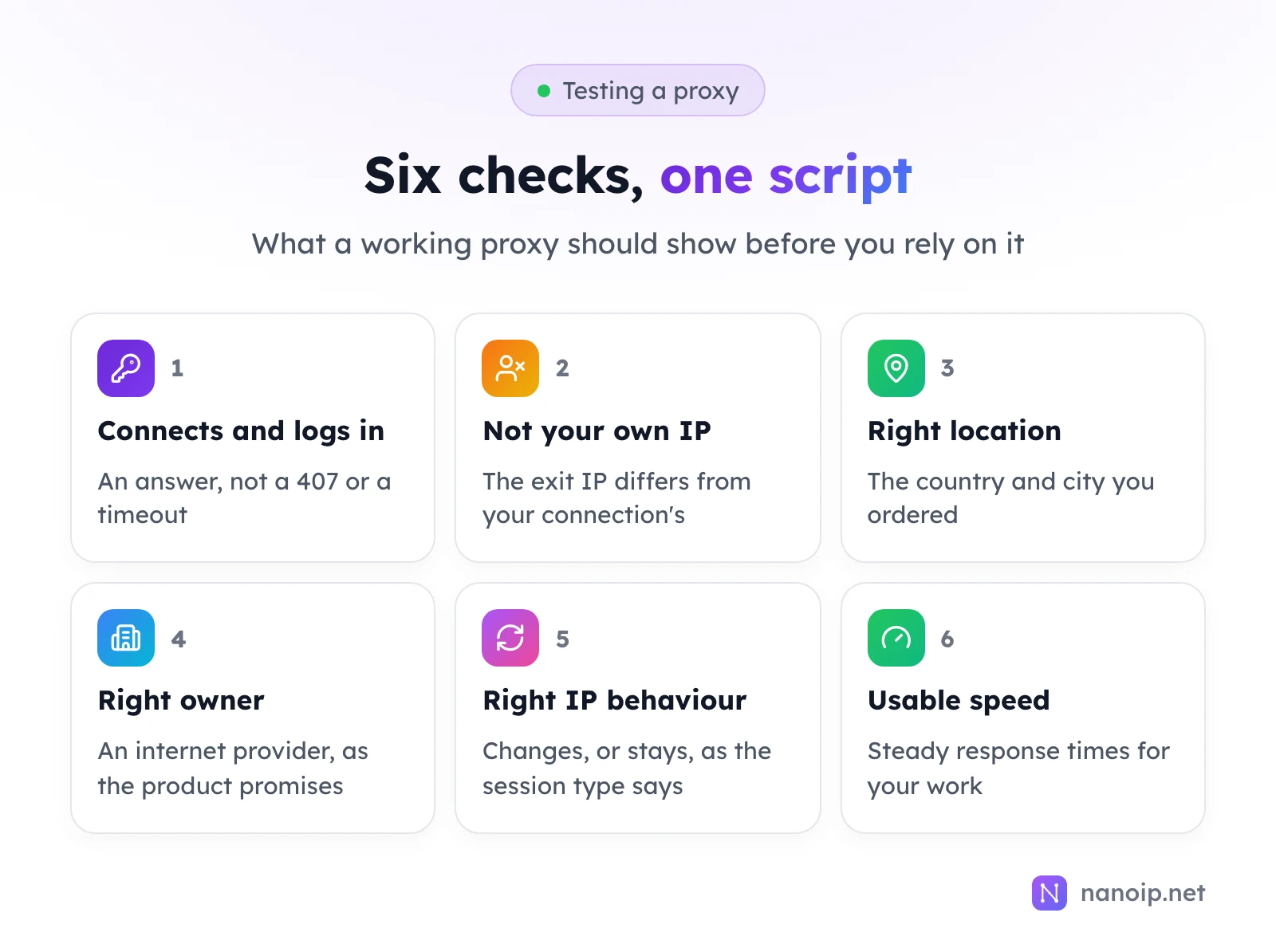
To test a proxy, send a few requests through it to an IP lookup service and check six things: it connects and accepts your login, the exit IP is not your own, the location is the one you ordered, the IP belongs to the kind of network you paid for, the IP changes or stays the way your session type says it should, and response times are steady. The Python script below runs all six in one go; for browser profiles, add a WebRTC check in the browser itself.
The script
The script looks up your own IP once, then makes five requests through the proxy, each on a new connection, and prints what each one saw:
import sys
import time

import requests

PROXY = "http://USERNAME:PASSWORD@HOST:PORT"
LOOKUP = "https://ipinfo.io/json"
proxies = {"http": PROXY, "https": PROXY}

own_ip = requests.get(LOOKUP, timeout=15).json()["ip"]

seen = []
for attempt in range(1, 6):
    start = time.perf_counter()
    try:
        response = requests.get(LOOKUP, proxies=proxies, timeout=15)
        response.raise_for_status()
    except requests.exceptions.RequestException as error:
        sys.exit(f"Check {attempt} failed: {error}")
    seconds = time.perf_counter() - start
    info = response.json()
    seen.append(info["ip"])
    print(f"{attempt}. {info['ip']}  {info.get('city')}, {info.get('country')}  {info.get('org')}  {seconds:.2f}s")

print("Exit IP is not your own:", own_ip not in seen)
print("Different exit IPs:", len(set(seen)), "of", len(seen))
Install requests first (pip install requests), replace the proxy URL, and run it with python proxy_check.py. Each line shows the exit IP, city, country, network owner and how long the request took; the last two lines answer checks 2 and 5. Each requests.get() opens its own connection, which is what lets a rotating proxy show a different IP per line; the Python requests guide explains why a Session would not.
We ran it against a local test proxy: five lines, five tunnels in the proxy's log, and every line showed the same IP, our own, since that proxy ran on the same computer. With a wrong password it stopped at the first check with Tunnel connection failed: 407 Proxy Authentication Required.
Reading the six checks
1. It connects and accepts the login
If the script exits at check 1, the proxy did not let the request through. 407 means the username or password; a timeout or Connection refused means the host, the port or your network. Proxy not working walks through each cause.
2. The exit IP is not your own
Exit IP is not your own: True is what you want. False means the traffic left from your own connection: the proxy settings were not applied, or, as in our test, the proxy runs on your own machine.
3. The location is right
Compare the city and country with what you ordered. For rotating residential routes, the country should always match; cities vary within it unless you chose one. If a lookup service puts a static IP in an unexpected city, check it in a second service before deciding it is wrong: IP databases disagree, especially right after IP ranges move.
4. The IP belongs to the right kind of network
The org field shows the network the IP belongs to. A residential or ISP proxy should show an internet provider; a mobile proxy, a mobile carrier. The IP fraud score guide shows how to read type, owner and risk in more detail.
5. The IP changes, or stays, as it should
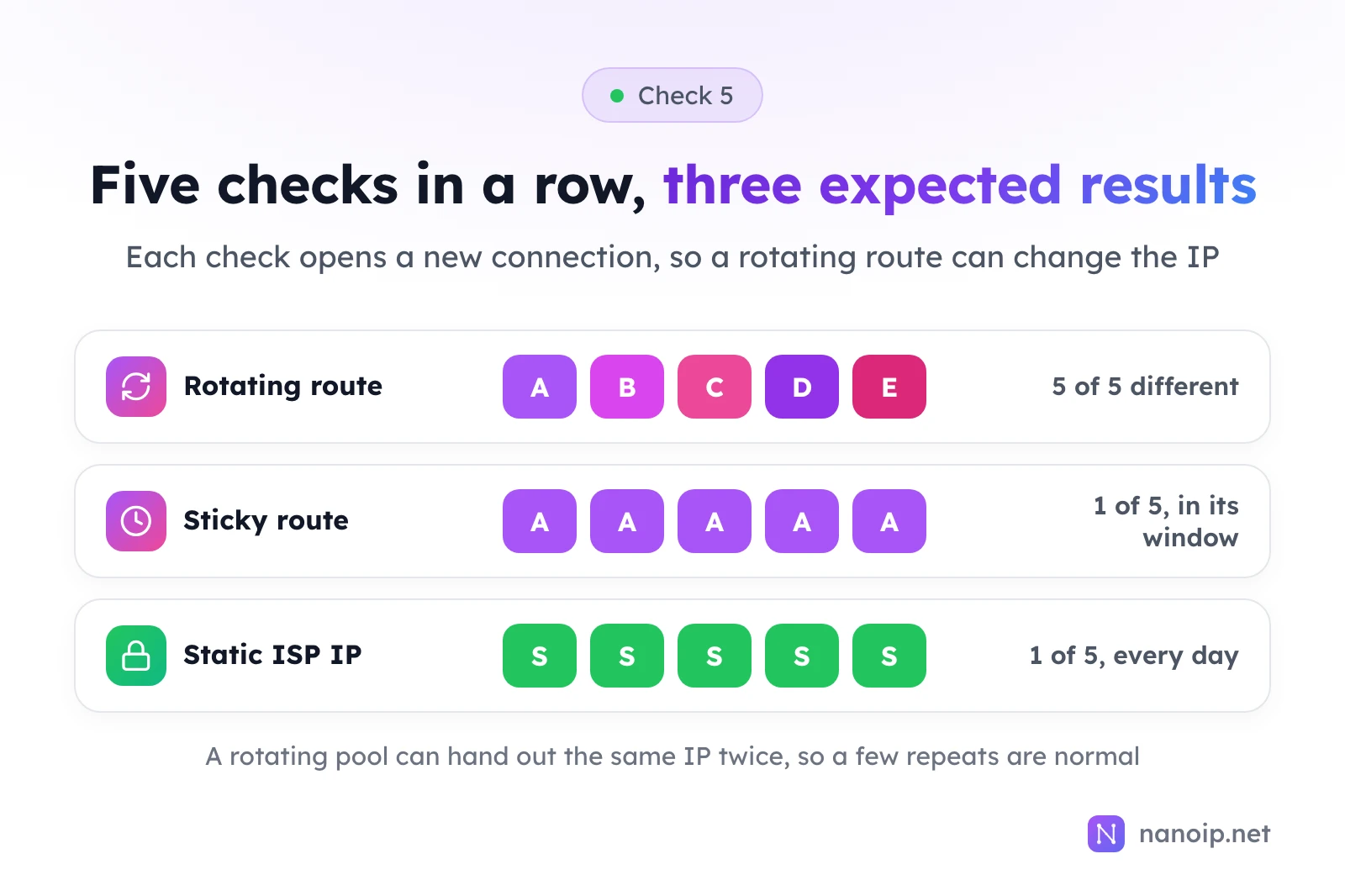
- Rotating route: most or all of the five IPs differ. A pool can hand out the same IP twice, so an occasional repeat is normal.
- Sticky route: the same IP on every line, as long as the run fits inside the sticky time you chose.
- Static ISP IP: the same IP on every line, today and every other day of the plan.
Rotating vs sticky sessions explains the difference between the two route types.
6. Speed is steady
The first request is usually the slowest, because it opens the connection to the proxy and the tunnel to the site. After that, look for steady times rather than a particular number: speed depends on the distance between you, the proxy's location and the site. If times are high, choose an exit location closer to the site you work with; how to use curl with a proxy shows how to time each step of a connection.
In a browser: the WebRTC check
If the proxy is going into a browser or a fingerprint browser profile, test it there as well, because the browser has traffic of its own:
- Open an IP lookup page in the profile and check the IP and country, as in checks 2 and 3.
- Open a WebRTC test page, such as BrowserLeaks' WebRTC test. The public IP it finds should be the proxy's, not yours. If it shows your own IP, WebRTC is going around the proxy: set the profile's WebRTC option to use the proxy, or use a SOCKS5 proxy with UDP. What a UDP proxy is explains why.
Testing NanoIP proxies
- Residential and mobile: use
https://USERNAME:PASSWORD@gateway.nanoip.net:1111with a route from Dynamic Routes. Run the script once on a rotating route and once on a sticky route to see both behaviours. The 1 GB package is enough for this kind of test. - ISP: use
http://USERNAME:PASSWORD@HOST:PORTwith the IP's own host and port. Every line should show the same IP, in the country you ordered, owned by a local internet provider.
The getting started guide shows where to find the connection details.
Frequently asked questions
How much traffic does a test use?
Very little. Each lookup returns a few hundred bytes of JSON, so a five-request run uses a tiny fraction of a megabyte on a traffic-billed plan.
Can I test with an online proxy checker instead?
Online checkers can tell you whether a proxy answers from their server, but not whether it works from your network, in your tool, with your login. Running the test where you will use the proxy answers the question that matters.
Why does the location differ between lookup services?
Each service uses its own IP database, and they do not always agree. Check two or three; if most agree with what you ordered, the IP is where it should be.