
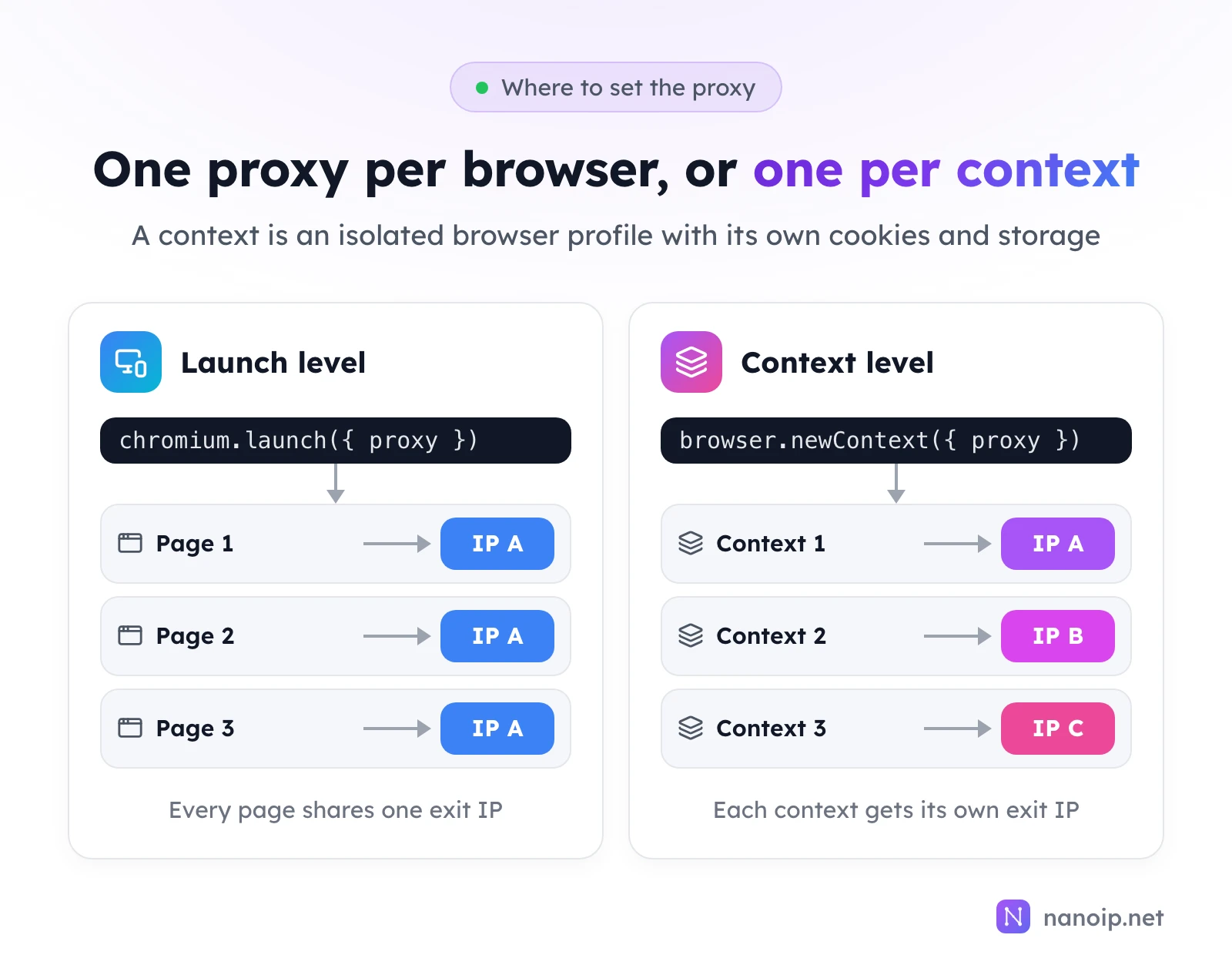
To use a proxy in Playwright, pass a proxy object with server, username and password, either to chromium.launch() for the whole browser or to browser.newContext() to give each context its own IP. Use an HTTP or HTTPS proxy when it needs a login: Playwright refuses SOCKS5 proxies with a username and password. With NanoIP, that means the HTTPS gateway for residential and mobile proxies and http://HOST:PORT for ISP proxies.
Before you start
You need Node.js and Playwright with a browser installed:
npm install playwright
npx playwright install chromium
The examples are ES modules (.mjs files) and use top-level await. Playwright for Python takes the same proxy keys, server, username and password, so the settings carry over.
Set a proxy for the whole browser
Pass the proxy to launch(). Every page and context the browser opens uses it. Save this as launch.mjs and run it with node launch.mjs:
import { chromium } from 'playwright';

const browser = await chromium.launch({
  proxy: {
    server: 'https://gateway.nanoip.net:1111',
    username: 'USERNAME',
    password: 'PASSWORD',
  },
});

const page = await browser.newPage();
await page.goto('https://ipinfo.io/json');
console.log(await page.textContent('body'));
await browser.close();
The page prints the exit IP as JSON, with its country, city and org. Passwords with characters such as @ or : need no encoding here, because the login has its own fields.
Give each context its own proxy
A browser context is an isolated session with its own cookies, storage and cache, like a separate browser profile. Passing proxy to newContext() gives each one its own exit IP inside the same browser, which is lighter than launching a browser per proxy. This script, contexts.mjs, opens one context per proxy:
import { chromium } from 'playwright';

const proxies = [
  { server: 'http://HOST_1:PORT_1', username: 'USERNAME_1', password: 'PASSWORD_1' },
  { server: 'http://HOST_2:PORT_2', username: 'USERNAME_2', password: 'PASSWORD_2' },
];

const browser = await chromium.launch();

for (const proxy of proxies) {
  const context = await browser.newContext({ proxy });
  const page = await context.newPage();
  await page.goto('https://ipinfo.io/ip');
  console.log(proxy.server, '→', (await page.textContent('body')).trim());
  await context.close();
}

await browser.close();
Each line of output shows a proxy and the IP the site saw through it. To skip the proxy for some hosts, add bypass to the proxy object with a comma-separated list, such as bypass: 'localhost,.internal.example'.
Which proxies Playwright accepts
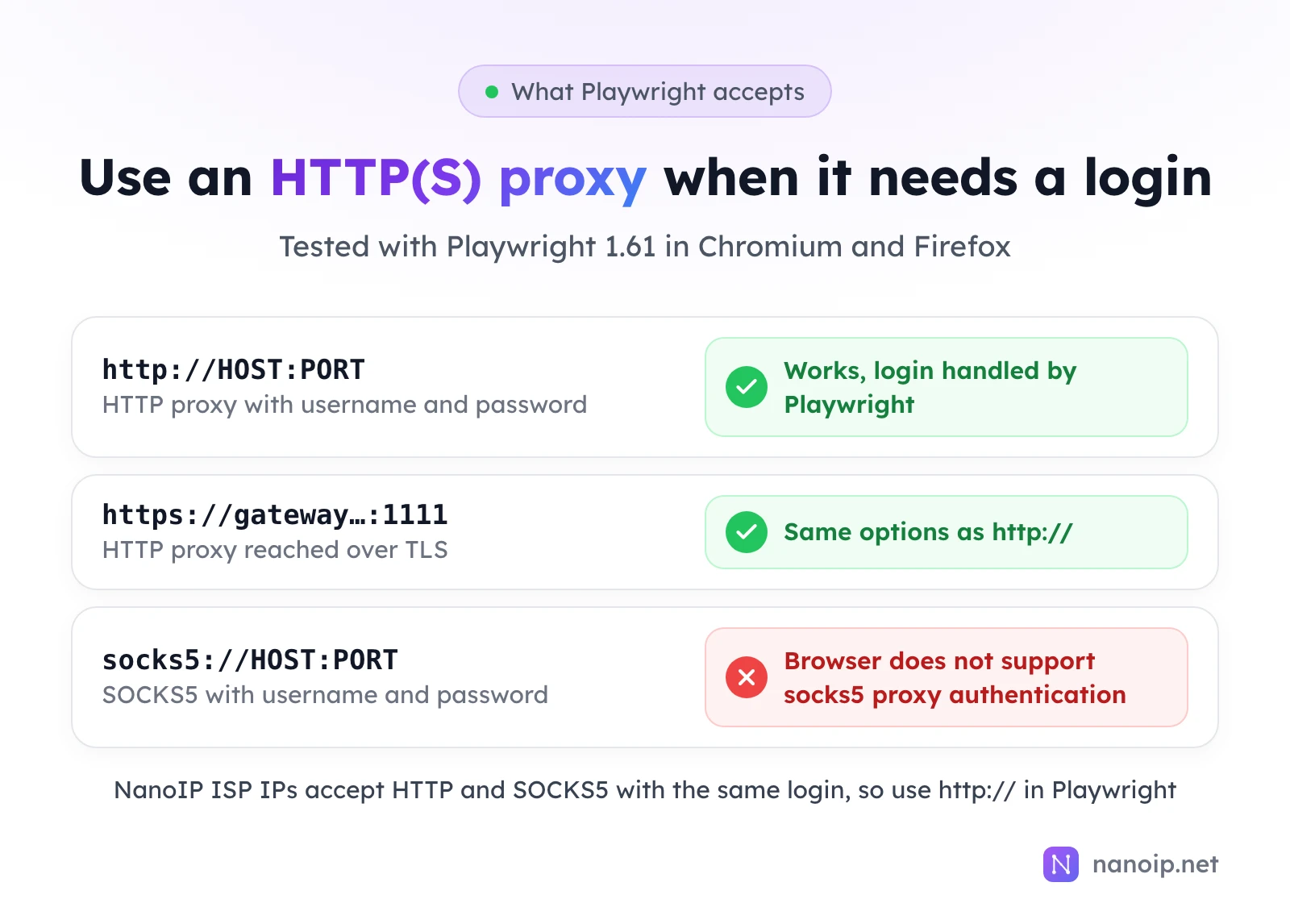
We tried a SOCKS5 proxy with a username and password in both Chromium and Firefox. Playwright stopped at launch:
browserType.launch: Browser does not support socks5 proxy authenticationSo for any proxy that needs a login, use HTTP or HTTPS. You lose nothing for web pages: browsers send web traffic through HTTP proxies the same way. SOCKS5 matters for UDP traffic, which browser automation rarely needs; see SOCKS5 vs HTTP proxies.
Check the proxy before the real work
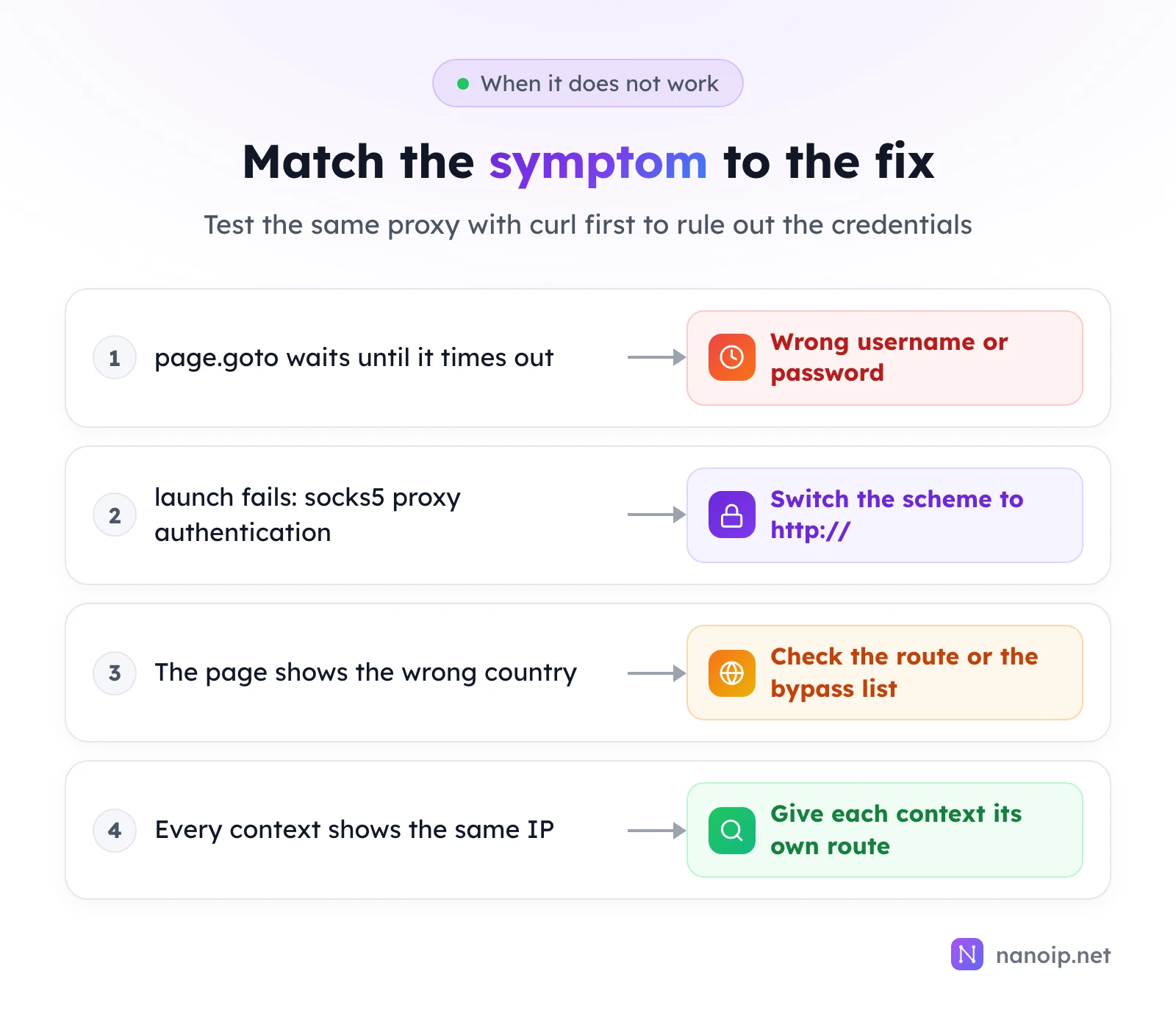
A wrong password does not raise a clear error in Playwright. Chromium first connects without credentials, the proxy asks for a login, and Playwright answers with yours; if the proxy refuses it, the page just waits. In our test, page.goto() with a wrong password ended only when the timeout ran out. Check the proxy with a short timeout before starting a long job, as check.mjs does:
import { chromium } from 'playwright';

const proxy = { server: 'http://HOST:PORT', username: 'USERNAME', password: 'PASSWORD' };

const browser = await chromium.launch({ proxy });
const page = await browser.newPage();

try {
  const response = await page.goto('https://ipinfo.io/json', { timeout: 15_000 });
  const info = await response.json();
  console.log(`Exit IP ${info.ip} in ${info.city}, ${info.country} (${info.org})`);
} catch (error) {
  console.error('Proxy check failed:', error.message.split('\n')[0]);
} finally {
  await browser.close();
}
With the right login it prints one line with the exit IP and location. With a wrong password, ours printed:
Proxy check failed: page.goto: Timeout 15000ms exceeded.A timeout on the very first page usually means the login, not the site. Test the same proxy with curl to tell the two apart: curl reports a wrong login as CONNECT tunnel failed, response 407. The guide to using curl with a proxy covers that test.
Using NanoIP proxies with Playwright
Residential and mobile proxies
Use server: 'https://gateway.nanoip.net:1111' with the username and password of a route from the dashboard's Dynamic Routes page. For browser automation, choose a sticky session: a page loads its HTML, scripts and images over several connections, and on a rotating route those connections can leave from different IPs. A sticky route keeps the whole page, and the steps after it, on one IP for the time you choose. To run several contexts in parallel, generate one sticky route per context. See rotating vs sticky sessions for choosing the duration.
ISP proxies
Each ISP proxy IP has its own host and port. Use server: 'http://HOST:PORT' with that IP's username and password; the same login also works over SOCKS5 elsewhere, but Playwright needs the HTTP form. An ISP IP stays the same for the whole plan, so it suits contexts that sign in to the same account every day, such as account management and store dashboards.
For collecting public pages across many locations, residential proxies with one sticky route per context are the usual choice; see web scraping.
Frequently asked questions
Can I change the proxy of a running context?
No. A context keeps the proxy it was created with. Close it and create a new context with the new proxy.
Does the proxy apply to context.request?
Yes. In our test, API calls made with context.request went through the context's proxy. A separate request.newContext() uses no proxy unless you pass it its own proxy option.